
Practical Productivity - How to Use Microsoft Word Dictation: An Useful Time‑Saver for Housing Authorities
Housing authorities juggle a constant flow of documentation—inspection notes, tenant letters, case activity logs, meeting minutes, and more. At Ultimate IT Guys, we work with housing authorities every day, and we know how valuable it is to save even a few minutes on each document.
One simple tool inside Microsoft Word can make that happen: Dictation.
Whether your team is short-staffed, working in the field, or simply tired of typing nonstop, Microsoft Word’s Dictation and Transcribe features can streamline your workflows and reduce manual effort.
What Is Microsoft Word Dictation?
Dictation converts your spoken words into text directly inside your Word document. Microsoft 365 users can speak naturally while Word handles the typing—perfect for drafting notes, writing letters, or recording inspection observations on the go.
Where to Find Dictation in Microsoft Word

- Open Word.
- Go to the Home tab on the ribbon.
- Look to the far right for the microphone icon labeled Dictate.
Click the button, allow microphone permissions if prompted, and Word will begin listening.
That’s it—you’re ready to start speaking your text.
How to Use Live Dictation
After clicking Dictate, speak clearly and naturally. Word converts speech to text in real time.
You can also speak punctuation and formatting commands, such as:
- “Period” → inserts a period
- “Comma” → inserts a comma
- “New paragraph” → starts a new paragraph
- “Bold that” → formats the last phrase in bold
This makes it easy to create clean, formatted documentation without manually typing each detail.
Real-world housing authority examples
- During inspections: Walk unit to unit and speak your notes directly into Word.
- During tenant interactions: Document conversations immediately afterward.
- When drafting letters: Create professional templates and fill them in with voice dictation.
No more writing everything twice—the documentation is created as you go.
How to Upload and Transcribe Audio Files
If you already have a recorded meeting, interview, or walkthrough, Word can turn the audio into text using the Transcribe feature.
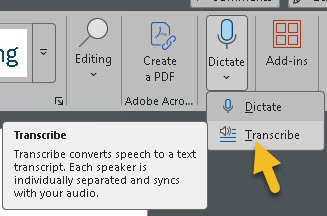
To use Transcribe:![]()
- Click the arrow on the bottom of the Dictate button.
- Select Transcribe.
- Upload your audio file (MP3, WAV, M4A, or MP4).
Word will automatically process the file and generate a transcript you can review and insert into your document.
Why this helps housing authorities
- Board meetings: Quickly produce draft minutes.
- Tenant hearings: Capture accurate, timestamped transcripts.
- Staff meetings or trainings: Document discussions without assigning a note‑taker.
Word can even detect multiple speakers and label them, making follow‑up review easier.
Practical Benefits for Housing Authority Staff
Documentation is a core responsibility in housing authority operations. Dictation and transcription help by:
- Reducing typing time
- Making inspections more efficient
- Improving accuracy of case notes
- Helping staff keep up with heavy workloads
- Allowing on-the-go documentation from laptops, tablets, or 2-in-1 devices
Even small time savings per document add up significantly across an entire team.
Final Thoughts
Microsoft Word’s Dictation and Transcribe tools are simple, built‑in features that often go unnoticed. But for housing authorities dealing with constant paperwork and tight staffing, they can provide meaningful efficiency gains.
If your organization needs help setting up Microsoft 365 securely or training staff on tools like Microsoft Word or Excel, our team at Ultimate IT Guys is ready to help.